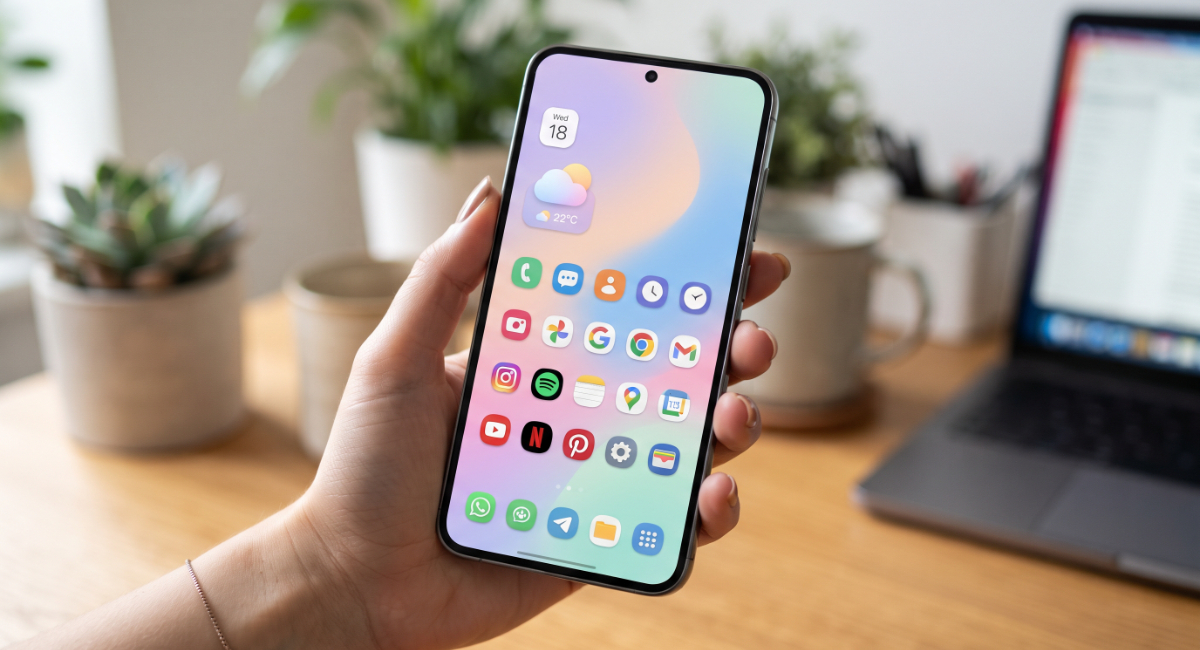
Looking for the best Samsung Phone Layout Ideas to make your device more organized, stylish, and productive? Samsung smartphones offer one of the most customizable Android experiences, allowing users to personalize everything from home screen layouts and app icons to widgets, wallpapers, lock screens, and themes. Whether you prefer a clean minimalist setup, a colorful aesthetic, or a productivity-focused design, there are countless ways to transform your phone into a space that reflects your personality and daily routine.
With built-in customization features such as One UI, widgets, Edge Panels, Themes, and advanced settings, Samsung users can create layouts that are both visually appealing and highly functional. This guide explores practical layout ideas, organization tips, customization tools, and common mistakes to avoid, helping you design a home screen that looks great and improves your overall smartphone experience.
Why a Well-Designed Phone Layout Matters
A thoughtfully organized phone layout is about more than appearance. It helps you access frequently used apps quickly, reduces screen clutter, and improves productivity throughout the day.
Benefits of a smart layout include:
- Faster navigation.
- Better app organization.
- Improved productivity.
- Reduced visual clutter.
- Easier one-handed use.
- Personalized user experience.
- Cleaner home screen.
- Better accessibility.
A well-planned layout saves time by keeping important apps and tools within easy reach while creating a more enjoyable user experience.
Minimalist Samsung Phone Layout Ideas
Minimalism remains one of the most popular Samsung Phone Layout Ideas because it combines simplicity with functionality. Instead of filling every screen with icons, a minimalist approach focuses only on essential apps and widgets.
Ideas for creating a minimalist setup include:
- Use a clean wallpaper with subtle colors.
- Keep only your most-used apps on the home screen.
- Organize remaining apps inside folders.
- Limit widgets to one or two useful options.
- Remove unnecessary shortcuts.
- Use matching icon packs.
- Hide unused applications from the home screen.
- Keep notifications organized.
The result is a modern, distraction-free interface that feels clean and efficient.
Productivity-Focused Home Screen Designs
If you use your Samsung phone for work, school, or business, organizing your layout around productivity can make daily tasks easier.
Useful widgets and shortcuts include:
- Calendar.
- To-do list.
- Weather.
- Clock.
- Notes.
- Email.
- Google Drive.
- Samsung Notes.
- Calculator.
- Quick settings.
Grouping work-related apps into dedicated folders also helps minimize distractions while improving workflow.
Samsung’s split-screen multitasking and Edge Panel features further enhance productivity by allowing quick access to frequently used applications.
Aesthetic Customization Tips
Creating an attractive home screen doesn’t require third-party launchers. Samsung’s One UI includes many built-in customization options.
Consider these ideas:
- Match wallpapers with icon colors.
- Use coordinated color themes.
- Add transparent widgets.
- Customize app icons.
- Apply dark mode for a modern appearance.
- Use monochrome icon packs.
- Create seasonal layouts.
- Personalize the lock screen.
Maintaining visual consistency across wallpapers, widgets, and icons gives your phone a polished and professional appearance.
Useful Tools for Creating Samsung Phone Layout Ideas
Designing personalized Samsung Phone Layout Ideas becomes easier with Samsung’s built-in customization tools and optional applications.
Popular customization features include:
One UI Customization
Samsung’s One UI allows users to resize widgets, organize folders, adjust grid layouts, and customize navigation settings.
Good Lock
Samsung’s Good Lock app offers advanced customization features such as lock screen editing, gesture controls, task changer styles, and navigation bar personalization.
Samsung Themes
Choose from thousands of themes featuring unique wallpapers, icons, fonts, and color combinations.
Widgets
Useful widgets include:
- Battery status.
- Music controls.
- Health tracking.
- Calendar.
- Weather updates.
- Digital wellbeing.
- Smart home controls.
Combining these tools allows users to create layouts that balance aesthetics with everyday functionality.
Common Layout Mistakes to Avoid
Even the most visually appealing setup can become frustrating if it’s not practical.
Avoid these common mistakes:
- Overcrowding the home screen.
- Using too many widgets.
- Mixing inconsistent icon styles.
- Choosing unreadable wallpapers.
- Ignoring accessibility.
- Leaving unused apps visible.
- Creating too many folders.
- Poor app placement.
- Excessive animations.
- Ignoring battery optimization.
A simple, organized layout generally provides the best long-term user experience.
Tips for Keeping Your Layout Organized
Your home screen should evolve with your changing needs.
Best practices include:
- Review your layout regularly.
- Remove unused apps.
- Update widgets when necessary.
- Group similar apps together.
- Back up customization settings.
- Keep essential apps on the first screen.
- Organize folders by category.
- Maintain a consistent visual theme.
- Test different layouts until one feels natural.
Small adjustments over time help maintain an efficient and attractive setup.
Conclusion
Whether you prefer a minimalist interface, a productivity-focused workspace, or a visually striking design, Samsung Phone Layout Ideas provide endless opportunities to personalize your smartphone experience. By using Samsung’s built-in customization features, organizing apps thoughtfully, selecting useful widgets, and maintaining a clean visual style, you can create a layout that is both beautiful and practical. The best home screen is one that supports your daily routine, reflects your personal style, and makes every interaction with your device faster, easier, and more enjoyable.
Frequently Asked Questions (FAQs)
1. Can I customize my Samsung phone without installing extra apps?
Yes. Samsung’s One UI includes built-in options for changing wallpapers, widgets, themes, folders, grid layouts, lock screens, and app organization.
2. What is the best layout for productivity?
A productivity-focused layout typically includes a calendar, notes, weather, email, and frequently used work apps on the main screen, with related apps grouped into folders.
3. Does customizing my phone affect performance?
Basic customization has little impact on performance. However, using many live widgets, animated wallpapers, or third-party launchers may consume additional system resources and battery life.
4. What is Samsung Good Lock?
Good Lock is a Samsung customization app that offers advanced tools for personalizing the lock screen, navigation bar, multitasking interface, themes, and other One UI features on supported devices.
5. How can I make my Samsung home screen look more aesthetic?
Choose a consistent wallpaper, matching icon pack, coordinated color theme, minimal widgets, and organized folders to create a clean and visually appealing layout.
6. How often should I reorganize my phone layout?
Reviewing your layout every few months or whenever your app usage changes helps keep your home screen organized, efficient, and aligned with your daily needs.